Pausing on Samsung Galaxy phones
Chrome or Samsung Internet: fix 10.0.0.1 and pause from either one.

You tap the sign-in prompt, Chrome opens, and instead of your remaining minutes you get a warning page. Annoying, but fixable. Here's Chrome Piso WiFi pause time from start to finish: getting 10.0.0.1 to load in Chrome, then pausing and resuming without losing a minute. This guide covers pausing Piso WiFi in Chrome from the first tap to the last, so a settings page never eats your minutes.
The 10.0.0.1 button works only while you are connected to a Piso WiFi network.
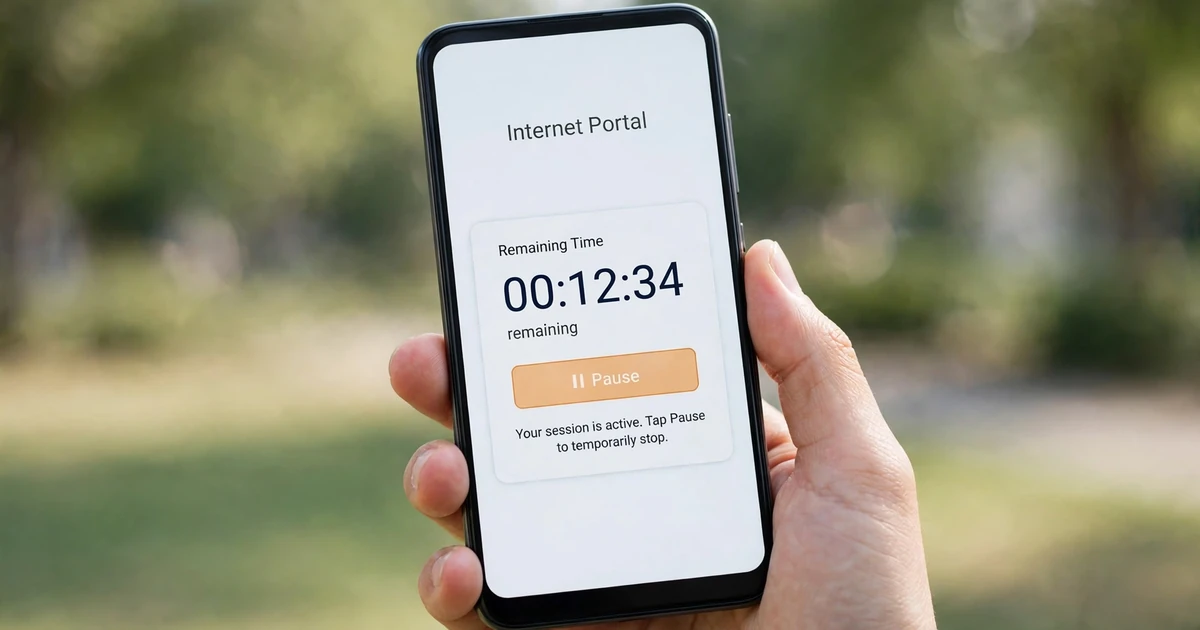
Join the vendo's WiFi with mobile data off, type 10.0.0.1 in Chrome's address bar, and tap Pause on the portal. To resume, open 10.0.0.1 in Chrome on the same phone or laptop and tap Resume. Your saved minutes continue from there.
Chrome Piso WiFi pause time runs on the same portal as every other browser. Follow the four steps in order and you'll pause Piso WiFi in Chrome without touching any other setting:
Switch off mobile data, then connect to the Piso WiFi network. Android has checked new networks for a login page since Android 5.0, according to Android Developers, so a sign-in prompt usually appears. Tapping it opens the portal for you.
No prompt? Open Chrome and type 10.0.0.1 in the address bar at the top. Count the dots: four numbers, three dots. A warning page instead of the portal means Chrome's secure-connections setting is in the way, and the fix is below. It's the most common blocker when you pause Piso WiFi in Chrome for the first time.
Find Pause next to your remaining time and tap it. The timer stops dropping, and your internet goes off until you resume.
Back on the vendo's WiFi, open 10.0.0.1 in Chrome again and tap Resume. Stick to the phone or laptop you paused with, because TP-Link Philippines says vendos match sessions by IP or MAC address.
Owners decide whether Pause shows up and how long a pause lasts. Once the portal loads, pausing Piso WiFi in Chrome takes two taps: Pause, then Resume. Our main guide explains how to pause your Piso WiFi time within those limits.
Chrome's “Always use secure connections” setting upgrades addresses to HTTPS and warns before opening a site that doesn't support it. The vendo portal runs on plain HTTP, so the warning appears when the setting covers private sites like 10.0.0.1.
Google's Chrome Help lists two levels for the setting. Here's what each one does at the vendo:
| Setting | What Chrome does | At 10.0.0.1 |
|---|---|---|
| Off | No HTTPS warning page. Pages without HTTPS show “Not Secure” in the address bar. | The portal opens, marked Not Secure |
| Warns you for insecure public sites | Warns on public HTTP sites. Chrome Help says it “does not warn you for private sites”. | The portal opens |
| Warns you for insecure public & private sites | Warns on public and private HTTP sites | A warning page first |
Chrome Help describes private sites as ones like a company intranet. 10.0.0.1 sits in a private address range under RFC 1918, which is why the public-and-private level catches the Piso WiFi portal in Chrome.
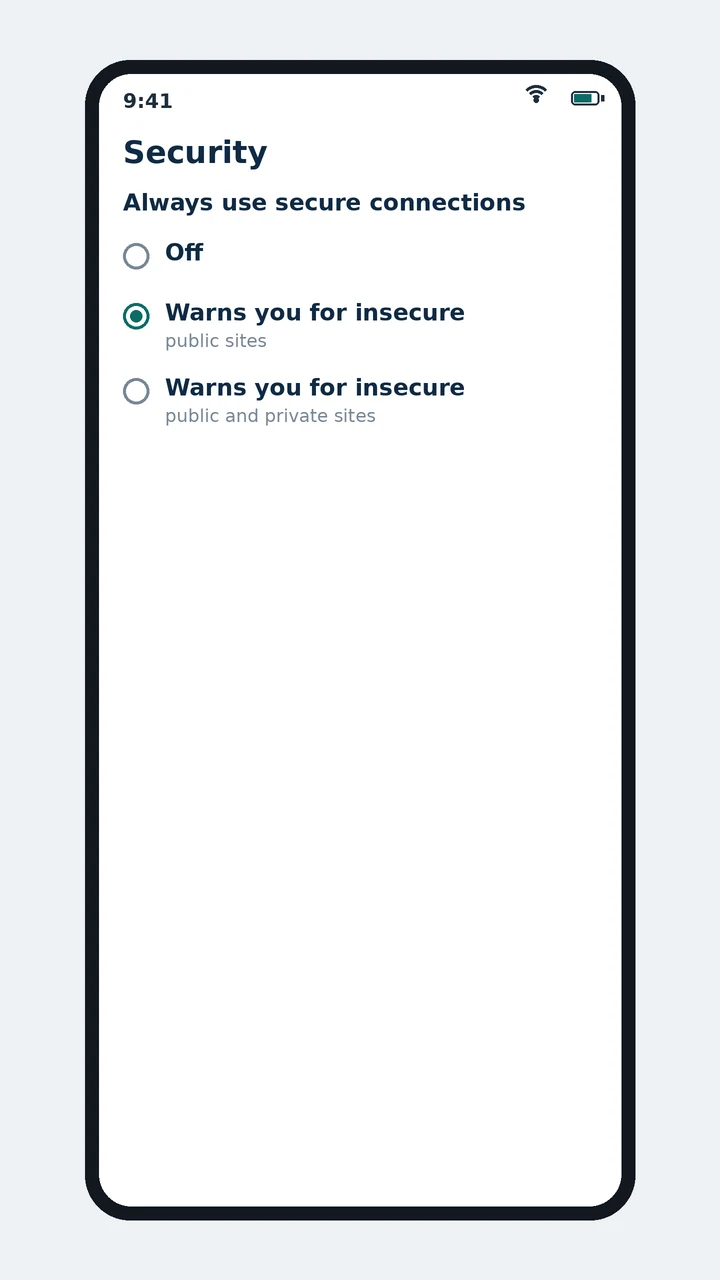
On a laptop, the path is More, Settings, Privacy and security, then Security. Same two levels. Set it once, and Chrome Piso WiFi pause time works on your laptop too.
Our take? Keep the public-sites level on. You still get warned on real websites, and the vendo portal stops getting in your way. It's the setting we recommend for anyone who pauses Piso WiFi in Chrome regularly.
Phones with Android Advanced Protection switch the setting on at the public-and-private level, says Chrome Help. On those phones, continue past the warning for 10.0.0.1 instead. You can still pause Piso WiFi in Chrome on these phones; the warning just takes one extra tap.
Not for pausing Piso WiFi in Chrome. Chrome labels every page without HTTPS as Not Secure, and the portal is one of them. Just don't type a password you use anywhere else on that page.
Start with three checks when 10.0.0.1 won't load in Chrome: mobile data still on, a custom Private DNS provider on Android, and an old copy of the portal saved in Chrome. Work through them in that order before you insert another coin.
| Check | Why it matters | Fix |
|---|---|---|
| Mobile data | 10.0.0.1 is a private address that only exists on the vendo's WiFi | Turn mobile data off and stay on the Piso WiFi network |
| Private DNS | A custom provider hostname replaces the network's own DNS | Settings, Network & internet, Private DNS: choose Automatic and tap Save |
| Old portal copy | Chrome saves parts of pages so they open faster, says Chrome Help | Delete cached images and files, or open an Incognito tab |
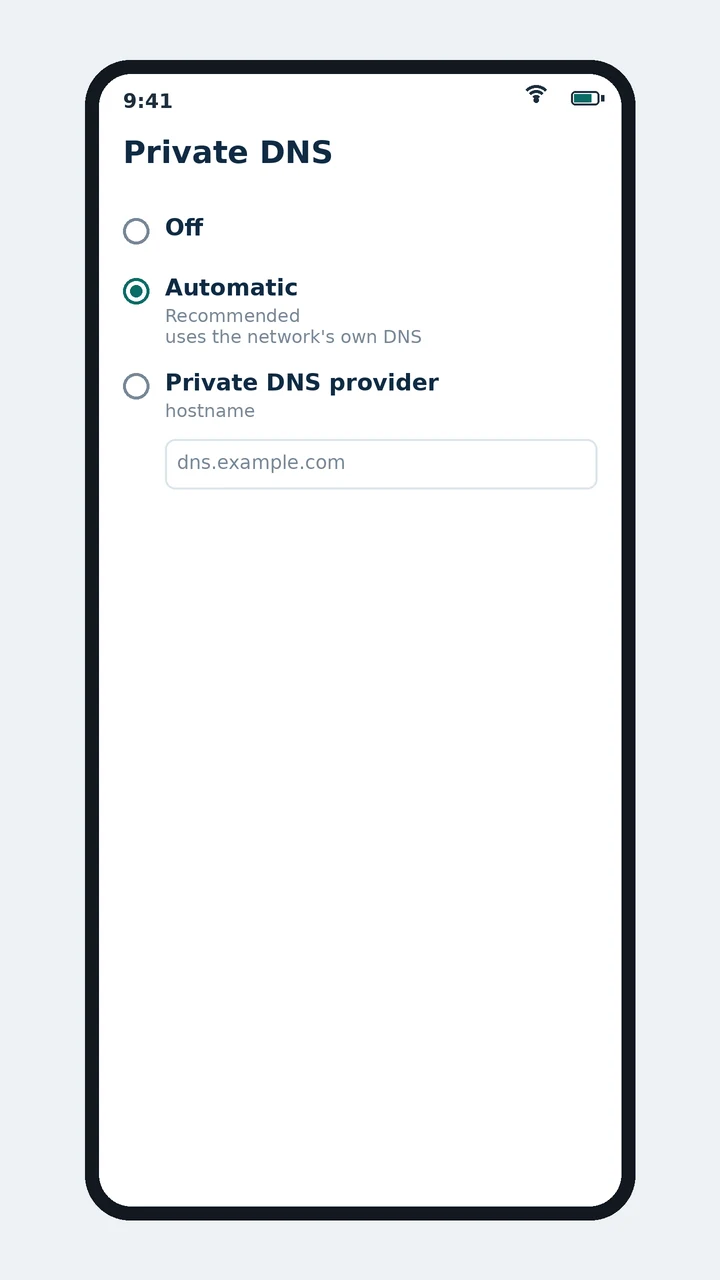
Android Help recommends leaving Private DNS on, and Automatic does that without forcing a custom provider. With DNS sorted, the portal should load and you can pause Piso WiFi in Chrome as normal. For a deeper look, read our guide to Android network settings.
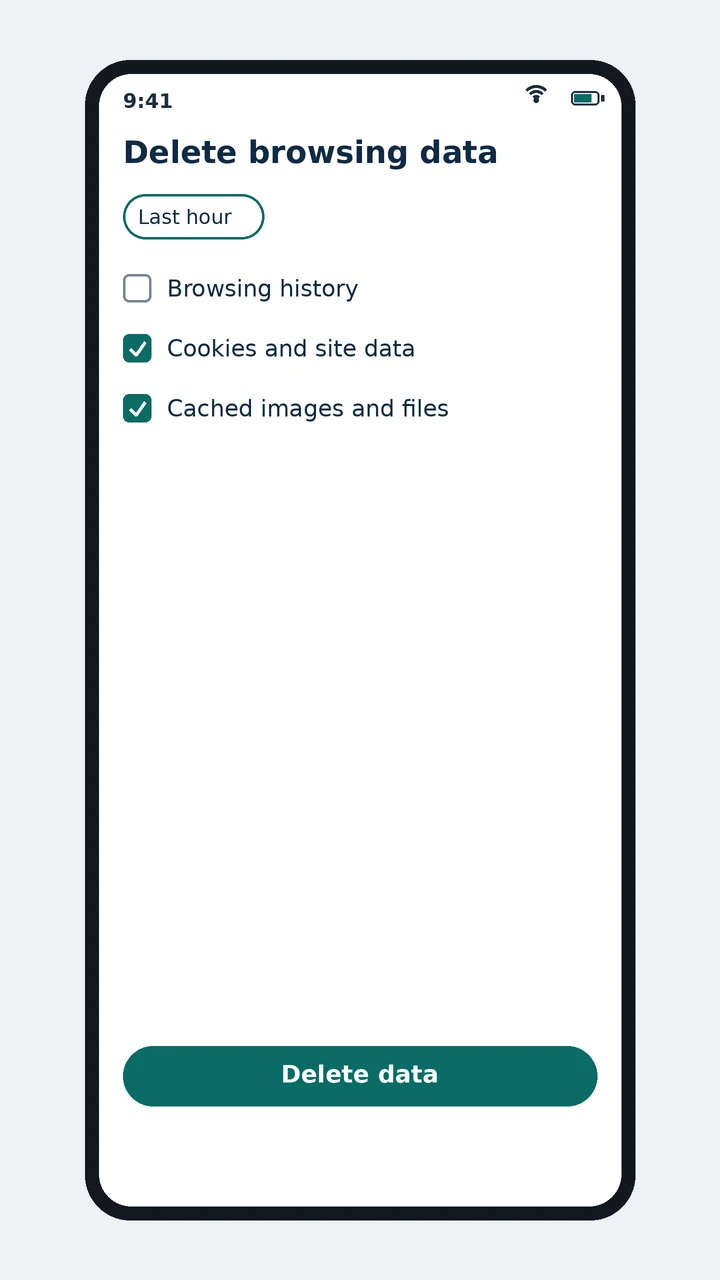
Rather not delete anything? Open an Incognito tab from the More menu and type 10.0.0.1 there. Chrome Help says Incognito doesn't keep site data once you close it, so old portal copies stay out of the way. It's the quickest way to test pausing Piso WiFi in Chrome when your main profile misbehaves.
Yes. The Pause button lives on the 10.0.0.1 web page, not in Chrome, so pausing Piso WiFi in Chrome works in any browser. Browsers hide their settings in different menus, so the fixes on this page change names, but the steps stay the same.
Using the browser that came with your Galaxy? Read the guide for Samsung phones. On an iPhone, or a laptop with another browser, the guide to Safari, Firefox and Opera has the matching steps.
Then Chrome isn't the problem. The owner hasn't switched pause on, your vendo limits the number of pauses, or the pause ran past the owner's limit. Chrome settings can't add a button the owner turned off, so ask the owner or check the other fixes.
TP-Link Philippines notes that when pause is disabled, the button doesn't appear and customers can't turn it on themselves. No Chrome Piso WiFi pause time setting changes that. Work through other pause problems next.
Every fact here comes from a public source: Google's Chrome Help pages, Android Help and Android Developers, the RFC 1918 standard, TP-Link Philippines' pause time guide and Circuitrocks' vendo build guide. Each one is linked below so you can check it.
Two guides sit under this page. One compares Chrome with Samsung Internet on Galaxy phones, and one covers Safari, Firefox, Opera and other browsers. Both use the same 10.0.0.1 portal and the same Chrome Piso WiFi pause time steps you saw above.
Chrome or Samsung Internet: fix 10.0.0.1 and pause from either one.
Open 10.0.0.1 and pause in any browser that isn't Chrome.
These six answers cover whether you need Chrome at all, the Not Secure label, staying safe with the warning off, how much data to clear, pausing Piso WiFi in Chrome on a laptop, and what to do when the sign-in prompt never shows.
No. The Pause button is on the 10.0.0.1 web page, so any browser on any phone or laptop works.
Because the portal uses plain HTTP. Chrome labels every page without HTTPS as Not Secure, so the label is expected here.
Yes. Chrome still warns you on insecure public sites. Only private sites like 10.0.0.1 skip the warning.
No. Delete cached images and files plus cookies and site data, or open an Incognito tab. Chrome Help says deleting cookies won't sign you out of your Google Account.
Yes. Join the vendo's WiFi, type 10.0.0.1 in Chrome and tap Pause. The secure-connections setting sits under Settings, Privacy and security, Security.
Android spots login pages by testing the network after you connect, and Android Developers calls that test unreliable. Skip the prompt and type 10.0.0.1 in Chrome.
Pause Piso WiFi in Chrome now and keep your minutes, or check the fixes for a Pause button that won't show.