Chrome Piso WiFi Pause Time
Fix 10.0.0.1 warnings and pause in Chrome.

Piso WiFi pause time on Android starts with the sign-in pop-up that appears when you join the vendo's WiFi. Tap it and the portal opens with your remaining time and the Pause button. If the pop-up never appears, open 10.0.0.1 in Chrome instead. This guide walks through the Android steps, the Private DNS fix, and how to resume your minutes later.
The 10.0.0.1 button works only while you are connected to a Piso WiFi network.
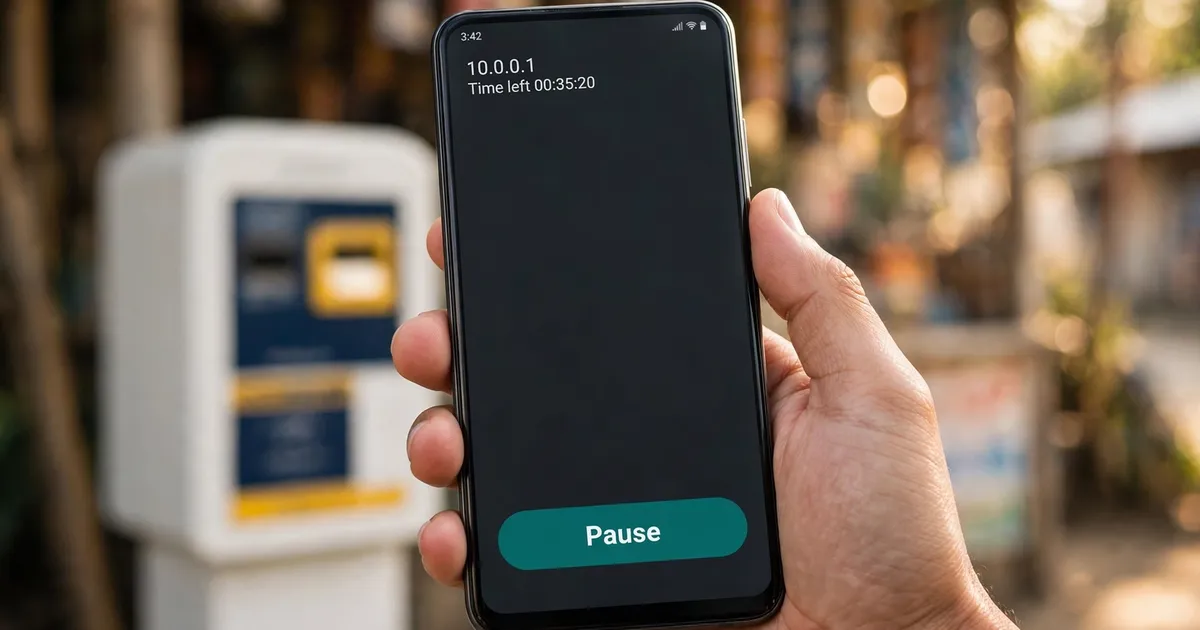
Join the vendo's WiFi with mobile data off, then tap the Sign in to network pop-up. The portal opens with your remaining time; tap Pause. If the pop-up never appears, open 10.0.0.1 in Chrome instead. Resume later by opening 10.0.0.1 on the same phone.
Follow these five steps in order for Piso WiFi pause time on Android, without losing a minute:
Switch mobile data off, then connect to the Piso WiFi network. The address 10.0.0.1 only exists on the vendo's network, so your phone must stay on that WiFi for Piso WiFi pause time on Android.
Android usually shows a Sign in to network notification after you connect. Tap it and the portal opens in a small system window, with your remaining time on screen.
No pop-up? Open Chrome and type 10.0.0.1 in the address bar. Count the dots: four numbers, three dots. This reaches the same portal the pop-up would have opened.
Find Pause next to your remaining time and tap it. The timer stops, and your internet goes off until you resume.
Later, reconnect to the vendo's WiFi, open 10.0.0.1 in Chrome and tap Resume. Stick to the phone you paused with, because the vendo matches the session to it.
Our main guide explains how to pause and resume your minutes in more detail. For the hub page covering all devices we write about, start there if you switch phones. Piso WiFi pause time on Android works the same on every brand.
Then Android never spotted the portal. Open Chrome and type 10.0.0.1 in the address bar, or visit http://neverssl.com. A VPN or a Private DNS provider can block the pop-up, so switch those off first for Piso WiFi pause time on Android.
The pop-up comes from Android's CaptivePortalLogin, a built-in system component. When you join a network that needs a login, Android runs a connectivity check in the background; if the network redirects that check, Android shows the Sign in to network notification and opens the portal in a lightweight window when you tap it. If something blocks the check, such as a VPN or a Private DNS provider, the pop-up never fires and you must open the portal yourself.
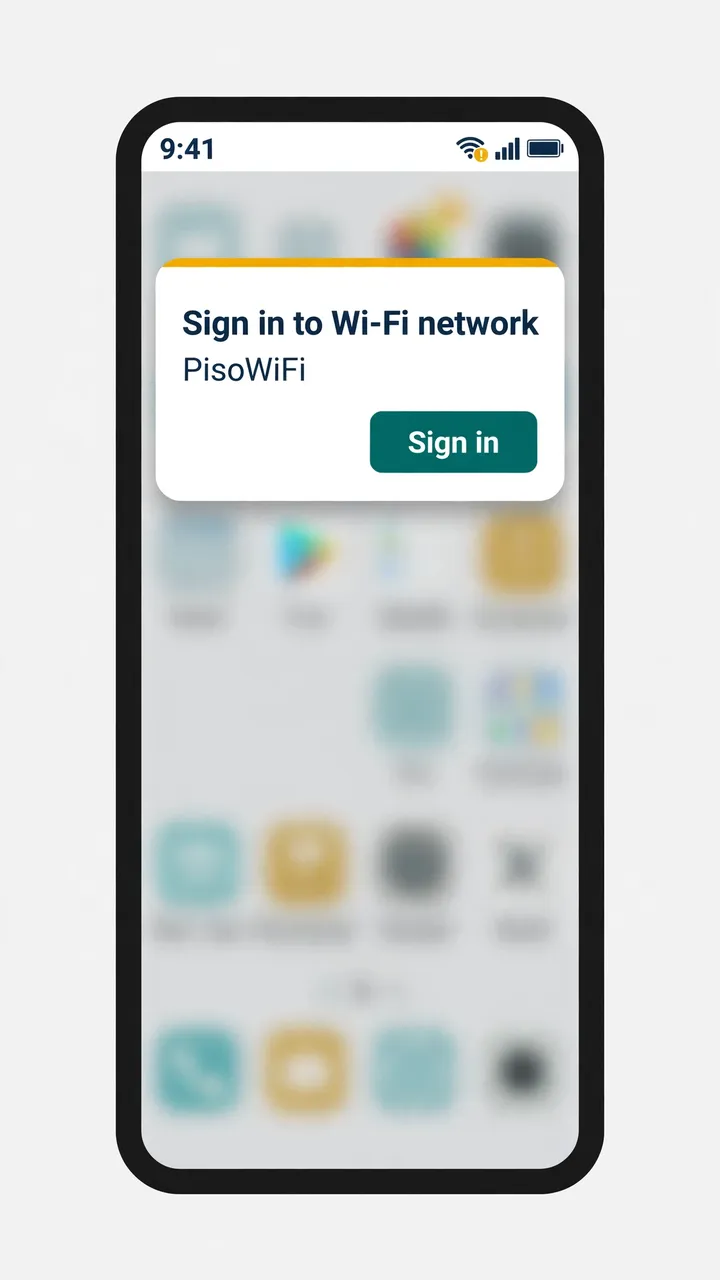
The pop-up is only a shortcut. Typing 10.0.0.1 in Chrome reaches the same portal, so a missing pop-up never blocks Piso WiFi pause time on Android.
Work through three checks for Piso WiFi pause time on Android: mobile data still on, a Private DNS provider blocking the portal, and an old cached copy in Chrome. Fix them in that order before you insert another coin.
| Symptom | Cause | Fix on Android |
|---|---|---|
| The page never loads | Mobile data is still on | Turn mobile data off and stay on the Piso WiFi network |
| Blank page or a DNS error | A Private DNS provider hostname is set | Settings, Network & internet, Private DNS: choose Automatic and tap Save |
| The portal looks broken or old | Chrome saved an old copy of the page | Open an Incognito tab, or delete cached images and files |
| The sign-in pop-up keeps looping | A VPN or ad-blocker is interfering | Turn the VPN off until you are signed in |
Most failures with Piso WiFi pause time on Android come from the first two rows. Mobile data quietly takes over, or a filtering DNS provider refuses the vendo's local address. Both are quick to fix and need no extra app.
Only if it blocks the portal. Automatic is the safe setting: Android uses the network's own DNS, which is what the vendo needs. Switch to Off or Automatic if a provider hostname blocks Piso WiFi pause time on Android. You can change it back afterwards.
Private DNS has three options on Android 9 and later: Off, Automatic, and Private DNS provider hostname. Automatic lets Android use the network's own DNS, which is exactly what the vendo's portal needs, so it is the setting to use for Piso WiFi pause time on Android. A custom provider hostname, often set by an ad-blocking or filtering service, can stop the portal from loading at all.
To change it: open Settings, then Network & internet, then Private DNS. On Samsung phones the path is Settings, Connections, More connection settings, Private DNS. Choose Automatic and tap Save, then try 10.0.0.1 again.
For the Samsung menus in detail, see the Samsung Galaxy phones guide. If Chrome itself shows a warning before the portal, the Chrome on Android guide covers that fix.
Reconnect to the vendo's WiFi on the same phone, open 10.0.0.1 and tap Resume. For Piso WiFi pause time on Android, sessions match the phone, so a different device may not show your saved minutes. Check the portal before you insert coins.
Pausing only freezes the timer; it does not end your session. When you come back, the vendo still remembers your remaining minutes, but only if you return on the phone that paused. Open the portal first and look for your saved time.
If the minutes are there, tap Resume and keep browsing with Piso WiFi pause time on Android. On a laptop instead, follow the Windows 10 guide. If the button still will not show, work through the pause not working fixes.
Every fact about Piso WiFi pause time on Android comes from a public source: Android Help and Android Developers for sign-in and Private DNS, plus independent guides on captive portal behaviour. Each one is linked below so you can check it.
These six answers cover Piso WiFi pause time on Android: the sign-in pop-up, Private DNS, mobile data, resuming your minutes later, Samsung phones, and what to do when nothing loads on your phone at all today.
No. Turn mobile data off and stay on the vendo's WiFi. The address 10.0.0.1 only exists on that network, so mobile data gets in the way instead of helping.
Because the vendo uses a captive portal. Android spots the login page with a connectivity check and shows the Sign in to network pop-up. Tap it to open the portal.
Yes. Samsung phones run Android, so the steps match. On Samsung, Private DNS sits under Settings, Connections, More connection settings. See the Samsung Galaxy phones guide for the exact menus.
No. Pausing happens over the vendo's WiFi, and the portal page is tiny. Keep mobile data off while you pause and resume.
No. The owner has not switched pause on, or your pause ran past the owner's limit. Android settings cannot add a button the owner turned off. See the pause not working guide.
Usually not. The vendo matches your session to the phone that paused, so resume on the same device. Check the portal before you insert more coins.
Open 10.0.0.1 and pause your time now, or fix a Pause button that will not show.